

Accept Apple Pay™ payments using a tokenised, host-to-host (PayHost) integration with PayGate. This approach allows you to authorise payments using an encrypted Apple Pay payload without handling raw card data.
In this integration, the Apple Pay SDK returns an encrypted payment token after customer authentication. The token is submitted to PayGate via a Token Payment Request, where it is decrypted using your configured Apple Pay processing certificate and authorised against the card network.
Prerequisites
Before implementing Apple Pay Host-to-Host payments, ensure the following have been completed:
-
An active Apple Developer Account with Apple Pay enabled
-
A registered Apple Pay Merchant ID
-
Apple Pay configured in the Merchant Access Portal (MAP)
-
PayHost (Host-to-Host) access enabled for your PayGate account
Merchant Processing Certificate Setup
To process Apple Pay transactions, a payment processing certificate must be created and uploaded. This certificate allows PayGate to decrypt Apple Pay tokens on your behalf.
1. Generate a Certificate Signing Request (CSR)
-
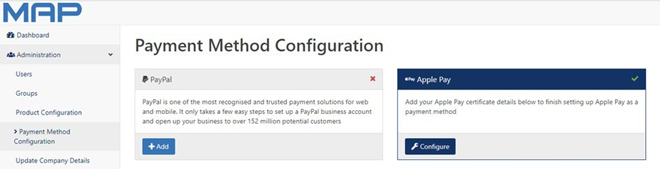
Log in to the Merchant Access Portal (MAP)
-
Navigate to:
Administration → Payment Method Configuration → Apple Pay
-
Select Configure
-
Enter the required details
-
In the Common Name field, enter your Merchant ID (FQDN format)
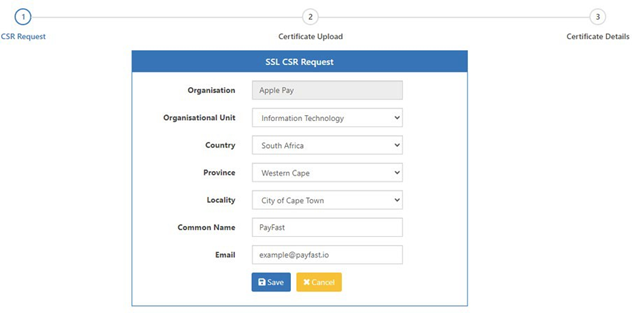
- Save and download the generated CSR
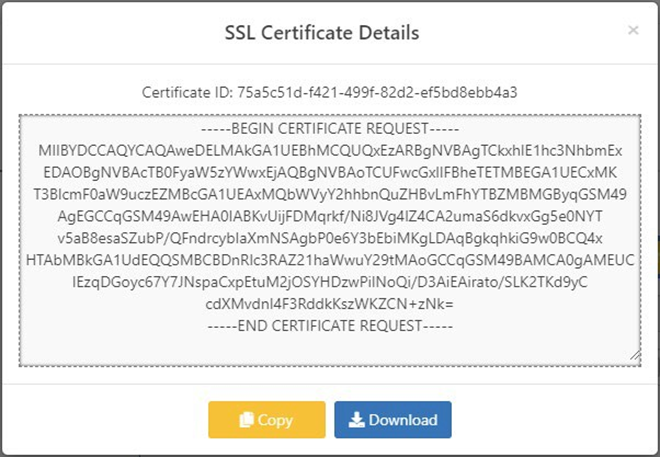
2. Upload CSR to Apple Developer Portal
-
Sign in to your Apple Developer account
-
Navigate to:
Certificates, IDs & Profiles → Identifiers → Merchant IDs
-
Select your Merchant ID
-
Under Apple Pay Payment Processing Certificate, choose Create Certificate
-
Upload the CSR generated in MAP
-
Download the issued certificate (.cer file)
3. Upload Certificate to PayGate
-
Return to MAP → Apple Pay configuration
-
In the Certificate Upload section:
-
Choose the downloaded .cer file
-
Upload the certificate
-
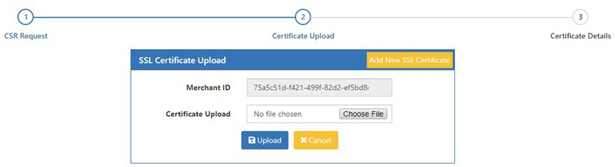
- Confirm successful upload
Once completed, PayGate can decrypt Apple Pay tokens for your transactions.
Processing an Apple Pay Payment
Step 1 — Obtain the Token
After the cardholder authorises payment using Apple Pay, the Apple Pay SDK returns an encrypted payload via the onpaymentauthorized callback.
The payload includes a token object containing encrypted payment data and signature information.
Step 2 — Extract the Token Object
Extract the token object from the Apple Pay payload.

Step 3 — Base64 Encode the Token
Encode the extracted token object as a Ba### Step 4 — Submit a Token Payment Request
Include the Base64-encoded token in the <Token> field of a PayHost TokenPaymentRequest.
Set:
<TokenDetail>ApplePay</TokenDetail>
Send the request to the PayHost endpoint for processing.
📨 Sample Token Payment Request (SOAP)
<SOAP-ENV:Envelope xmlns:SOAP-ENV="http://schemas.xmlsoap.org/soap/envelope/">
  <SOAP-ENV:Header/>
  <SOAP-ENV:Body>
    <SinglePaymentRequest xmlns="http://www.paygate.co.za/PayHOST">
      <TokenPaymentRequest>
        <Account>
          <PayGateId>{{paygate_id}}</PayGateId>
          <Password>{{encryption_key}}</Password>
        </Account>

        <Customer>
          <Title>Mr</Title>
          <FirstName>Joe</FirstName>
          <LastName>Soap</LastName>
          <Email>[email protected]</Email>
        </Customer>

        <Token>{{base64_encoded_token}}</Token>
        <TokenDetail>ApplePay</TokenDetail>

        <Order>
          <MerchantOrderId>a-random-reference</MerchantOrderId>
          <Currency>ZAR</Currency>
          <Amount>1000</Amount>
        </Order>

      </TokenPaymentRequest>
    </SinglePaymentRequest>
  </SOAP-ENV:Body>
</SOAP-ENV:Envelope>
📬 Token Payment Response
PayGate returns a TokenPaymentResponse containing the authorisation result.
Successful Response Example
<SinglePaymentResponse>
  <TokenPaymentResponse>
    <Status>
      <TransactionId>1937211563</TransactionId>
      <Reference>a-random-reference</Reference>
      <StatusName>Completed</StatusName>
      <TransactionStatusDescription>Approved</TransactionStatusDescription>
      <AuthCode>072961</AuthCode>
      <Currency>ZAR</Currency>
      <Amount>1000</Amount>
    </Status>
  </TokenPaymentResponse>
</SinglePaymentResponse>