

Accept Samsung Pay™ payments using a host-to-host (PayHost) token integration
Overview
Samsung Pay Host-to-Host allows merchants to process Samsung Pay transactions using PayGate’s Token Payment flow. After a customer authorises payment via Samsung Pay, the merchant retrieves a payment token from Samsung and submits it to PayGate for processing.
This integration uses:
-
Samsung Pay Web Checkout / SDK
-
Samsung Pay Developer Services
-
PayGate Merchant Access Portal (MAP)
-
PayGate Token Payment API
Prerequisites
Before implementing Samsung Pay Host-to-Host, ensure the following are completed:
Samsung Pay Developer Setup
-
Create a Samsung Account
-
Register on the Samsung Pay Developers site
-
Obtain approval from a Samsung Pay Relationship Manager
-
Create a Service (Test or Release)
-
Register your application and obtain Service ID
flowchart LR
    A[Sign-in with Samsung Account]
    B[Agree to T&C]
    C[Select Service Location]
    D[Complete Registration Form]
    E[Submit Sign-up Request]
    F[RM Approval]

    A --> B --> C --> D --> E --> F
Samsung Pay offers several service types, including:
-
In-App Payments
-
App-to-App Card Enrolment
-
Web Checkout
-
Internal APK
PayGate Certificate Setup
You must create a Certificate Signing Request (CSR) via the PayGate Merchant Access Portal (MAP). This certificate is used to decrypt Samsung Pay tokens.
Create CSR in MAP
-
Log in to the Merchant Access Portal (MAP)
-
Navigate to Payment Method Configuration
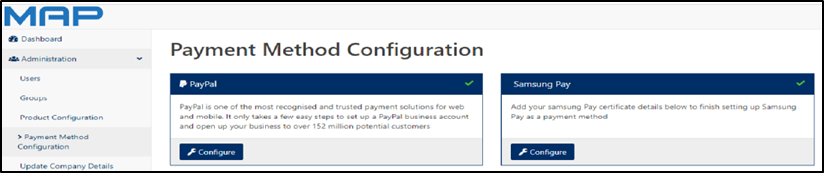
-
Create a new CSR
-
Complete required fields
- The Common Name must be a Fully Qualified Domain Name (FQDN)
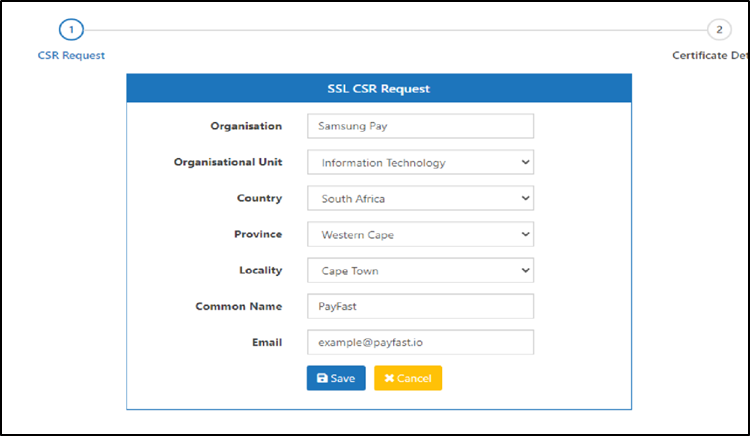
- Save and Download the CSR.
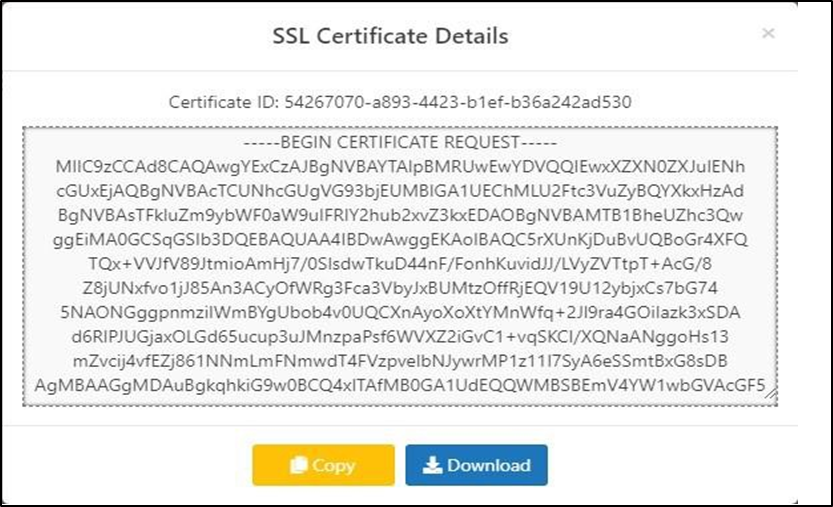
- Once the download is finished, it will be marked as complete.
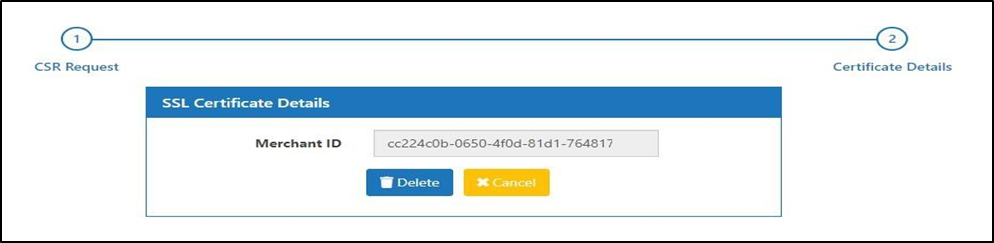
Upload CSR to Samsung Pay
-
Log in to Samsung Pay Developer Account
-
Navigate to My Projects → Service Management
-
Create a new service (or edit an existing one)
-
Upload the CSR generated from MAP
Payment Processing Flow
The payment process consists of three major steps:
-
Customer authorises payment using Samsung Pay
-
Merchant retrieves the payment token from Samsung
-
Merchant submits token to PayGate for processing
End-to-End Transaction Flow (Mermaid)
sequenceDiagram
    participant Customer
    participant MerchantApp
    participant SamsungPay
    participant MerchantServer
    participant PayGate

    Customer->>MerchantApp: Select Samsung Pay
    MerchantApp->>SamsungPay: Initiate payment
    SamsungPay->>Customer: Request authentication
    Customer->>SamsungPay: Approve payment
    SamsungPay->>MerchantApp: Return ref_id (callback)

    MerchantApp->>MerchantServer: Send ref_id
    MerchantServer->>SamsungPay: Request token (Web Checkout API)
    SamsungPay-->>MerchantServer: Return payment payload

    MerchantServer->>MerchantServer: Base64 encode payload
    MerchantServer->>PayGate: TokenPaymentRequest (encoded token)
    PayGate-->>MerchantServer: TokenPaymentResponse
    MerchantServer->>MerchantApp: Payment result
Step 1 — Obtain the Payment Token
After the cardholder approves the Samsung Pay transaction, Samsung returns a ref_id in the callback.
Use this reference to retrieve the payment credentials from the Samsung Web Checkout API.
The response contains a payment payload representing the tokenised payment data.
{
  "resultCode": "0",
  "resultMessage": "SUCCESS",
  "method": "3DS",
  "features": [],
  "card_brand": "VI",
  "card_last4digits": "3990",
  "3DS": {
    "type": "S",
    "version": "100",
    "data": "eyJhbGciOiJSUzUxMiIsInR5cCI6IkpXVCJ9..."
  },
  "wallet_dm_id": "9._wrsI6lax_VYLKbqvug1Ula3NYEja9FFAIYr0Y9c="
}
Step 2 — Encode the Payload
The payload received from Samsung must be encoded using Base64 before being sent to PayGate.
Why Encoding Is Required
PayGate expects the token in Base64 format to safely transmit the encrypted payment data.

Step 3 — Submit Token Payment Request
Send a TokenPaymentRequest to PayGate containing the Base64-encoded token.
TokenPaymentRequest Flow (Mermaid)
flowchart LR
    A[Samsung Pay Payload] --> B[Base64 Encode]
    B --> C[Insert into Token field]
    C --> D[Send TokenPaymentRequest to PayGate]
    D --> E[Receive TokenPaymentResponse]
Token Payment Request
Insert the Base64-encoded token into the Token field of the request.
Your existing PayGate Token Payment integration handles the remaining fields (merchant credentials, amount, etc.).
<SOAP-ENV:Envelope xmlns:SOAP-ENV="http://schemas.xmlsoap.org/soap/envelope/">
  <SOAP-ENV:Header/>
  <SOAP-ENV:Body>
    <SinglePaymentRequest xmlns="http://www.paygate.co.za/PayHOST">
      <TokenPaymentRequest>

        <Account>
          <PayGateId>{paygate_id}</PayGateId>
          <Password>{encryption_key}</Password>
        </Account>

        <Customer>
          <Title>Mr</Title>
          <FirstName>Joe</FirstName>
          <LastName>Soap</LastName>
          <Email>[email protected]</Email>
        </Customer>

        <Token>
          ewoJGAcg...BASE64_ENCODED_SAMSUNG_PAY_TOKEN...RZRob
        </Token>

        <TokenDetail>
          SamsungPay</TokenDetail>

        <Order>
          <MerchantOrderId>a-random-reference</MerchantOrderId>
          <Currency>ZAR</Currency>
          <Amount>1000</Amount>
        </Order>

      </TokenPaymentRequest>
    </SinglePaymentRequest>
  </SOAP-ENV:Body>
</SOAP-ENV:Envelope>
Token Payment Response
PayGate returns a TokenPaymentResponse indicating:
-
Authorisation result
-
Transaction status
-
Relevant reference data
Use this response to update the payment status in your system.
<SOAP-ENV:Envelope xmlns:SOAP-ENV="http://schemas.xmlsoap.org/soap/envelope/">
  <SOAP-ENV:Header/>
  <SOAP-ENV:Body>
    <ns2:SinglePaymentResponse xmlns:ns2="http://www.paygate.co.za/PayHOST">
      <ns2:TokenPaymentResponse>

        <ns2:Status>

          <ns2:TransactionId>1937211863</ns2:TransactionId>
          <ns2:Reference>a-random-reference</ns2:Reference>

          <ns2:AcquirerCode>00</ns2:AcquirerCode>
          <ns2:StatusName>Completed</ns2:StatusName>
          <ns2:AuthCode>072961</ns2:AuthCode>

          <ns2:PayRequestId>C6FE5732-EA71-4EE6-A3D2-2146E10A111D</ns2:PayRequestId>

          <ns2:TransactionStatusCode>1</ns2:TransactionStatusCode>
          <ns2:TransactionStatusDescription>Approved</ns2:TransactionStatusDescription>

          <ns2:ResultCode>990017</ns2:ResultCode>
          <ns2:ResultDescription>Auth Done</ns2:ResultDescription>

          <ns2:Currency>ZAR</ns2:Currency>
          <ns2:Amount>1000</ns2:Amount>

          <ns2:RiskIndicator>XX</ns2:RiskIndicator>

          <ns2:PaymentType>
            <ns2:Method>CC</ns2:Method>
            <ns2:Detail>Visa</ns2:Detail>
          </ns2:PaymentType>

        </ns2:Status>

      </ns2:TokenPaymentResponse>
    </ns2:SinglePaymentResponse>
  </SOAP-ENV:Body>
</SOAP-ENV:Envelope>
Service Registration Notes (Samsung Pay)
Debug vs Release Services
Samsung Pay supports two service modes:
| Mode | Purpose |
|---|---|
| Test | Limited testing with selected Samsung accounts |
| Release | Production use |
Debug Key
-
Used during testing to validate the partner app
-
Must be included in the app manifest
-
Valid for approximately 3 months
-
Should never be exposed in logs
App Registration
Samsung Pay requires app registration for services using:
-
In-App Payments
-
App-to-App Enrolment
Two build types can be registered:
| Build Type | Description |
|---|---|
| Debug Build | Used for testing and QA |
| Release Build | Production build for end users |
Service Status Lifecycle
During integration, services may have different statuses:
| Status | Meaning |
|---|---|
| Creating | Registration incomplete |
| Debugging | Testing enabled |
| Requesting | Release approval pending |
| Approved | Ready for release |
| Blocked | Service disabled |
Glossary
CSR — Certificate Signing Request
A cryptographic file generated to request a digital certificate from a Certificate Authority. Used here to decrypt Samsung Pay tokens.
FQDN — Fully Qualified Domain Name
A complete domain name specifying an exact location in DNS (e.g., www.example.com).
Base64 Encoding
A method for converting binary data into ASCII text format for safe transmission.